With screenshots using Facebook and Zapier Email. Setup time 10 minutes.
In this tutorial, I will show you how to set up automatic emailing of your leads from Facebook Lead Ads, the setup for this is quite simple and utilises Zapier’s Email system. For those that use online CRM’s like PipeDrive, Salesforce and more you can also email your lead and push it directly to your CRM, I will do a tutorial on that in the future.
What you will need for this:
- A Zapier Account, Register here
- Admin access to your desired Facebook Business page.
Note: your user role must be admin to be able to access lead ad data, editor or lower will result in this not working!
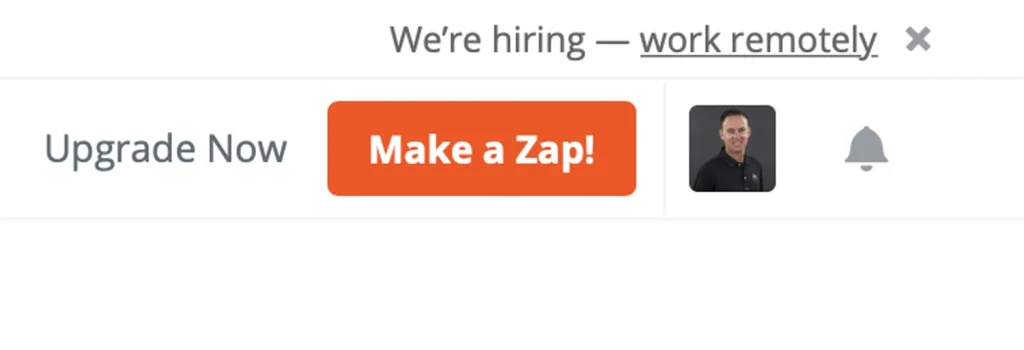
Step 1: Head over to Zapier and log in, next hit the orange button in the top right “Make a Zap!”
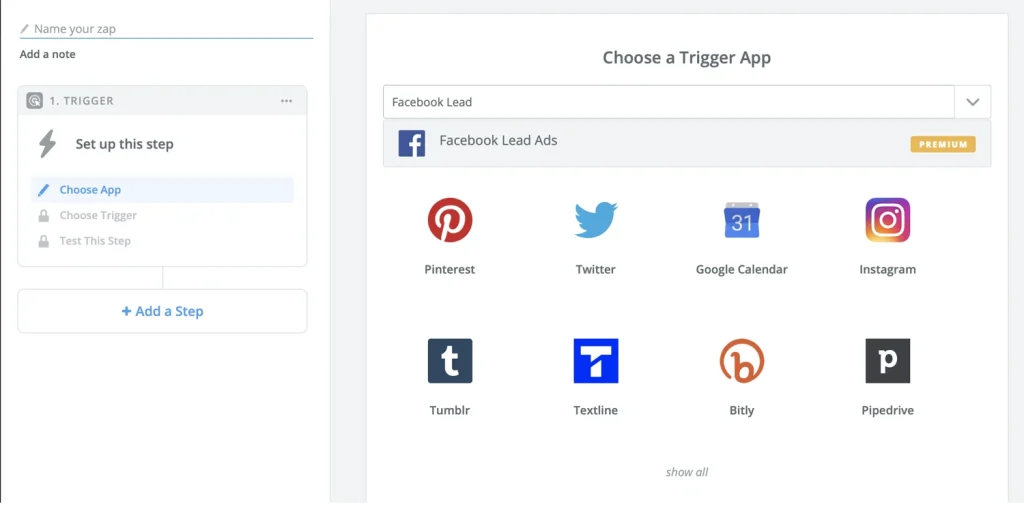
Step 2: Next in the search box type in Facebook Lead Ads (Note: This does require a Premium Zapier account) and select the option.
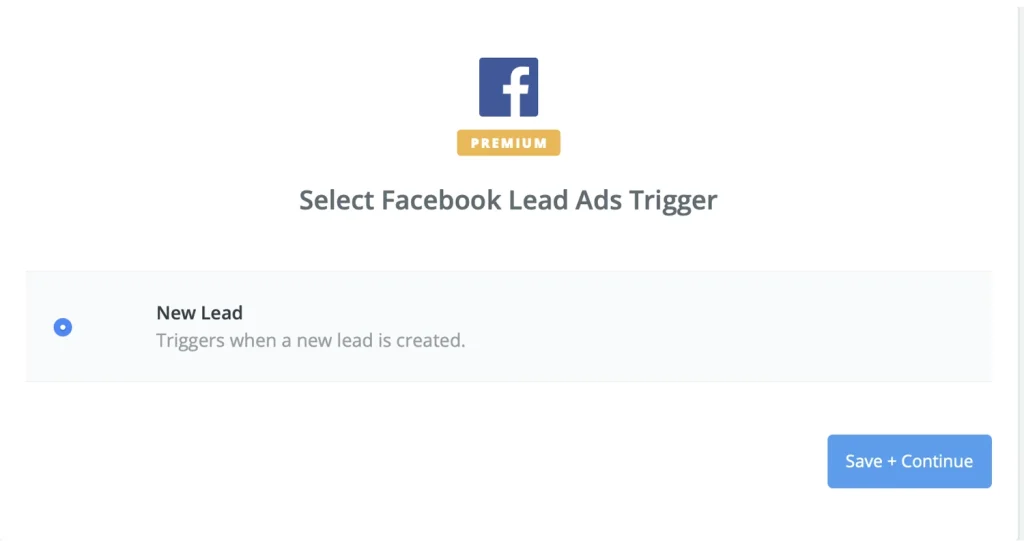
Step 3: Select the trigger as “New Lead” and hit the Save and Continue Button.
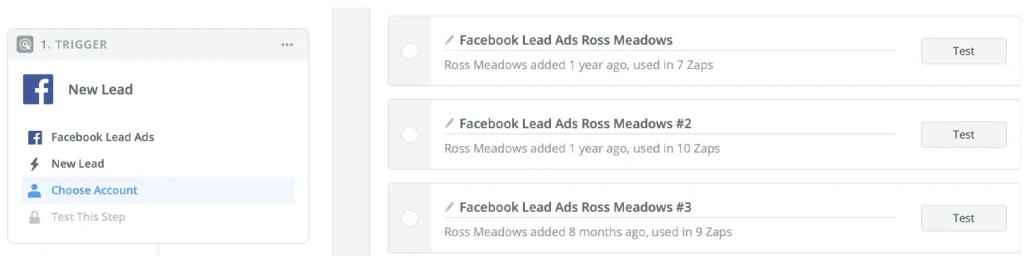
Step 4: Next you will need to connect your Facebook account to Zapier, this is done so that the lead information can be passed from Facebook to Zapier and then emailed. Select your account and click continue.
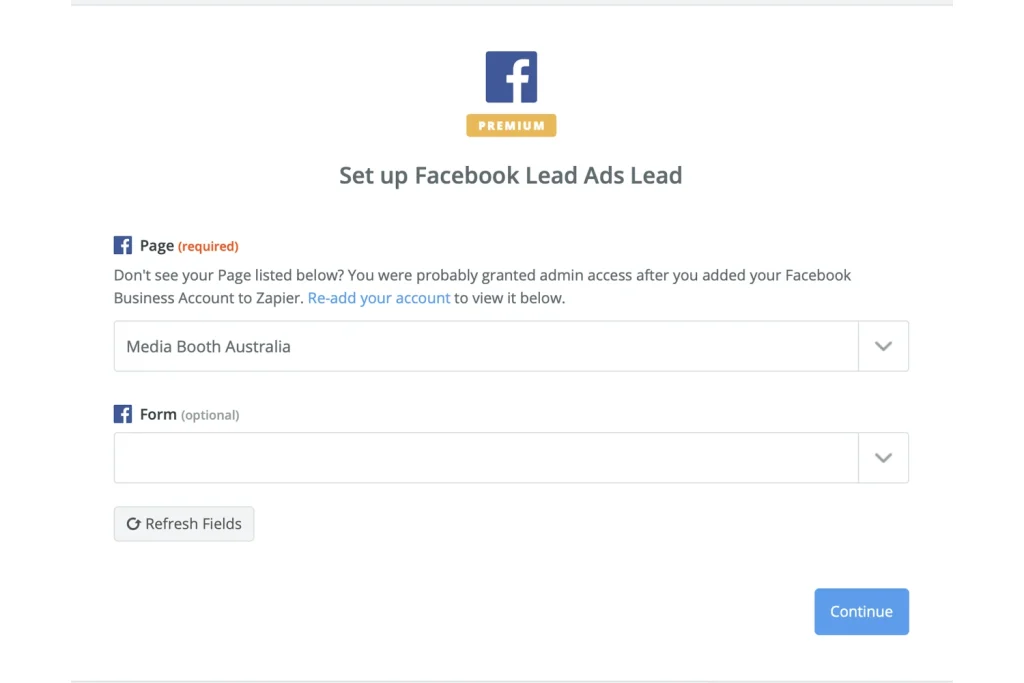
Step 5: Now select your page from the top dropdown, once this loads your page the form option below will list all your available lead ad forms, ready for you to select the form you wish to email leads from. Note you cannot set multiple lead forms, they will each require a separate Zap.
(Tip: Once you complete your Zap you can duplicate it and then just change the Facebook Lead form to handle multiple lead forms)
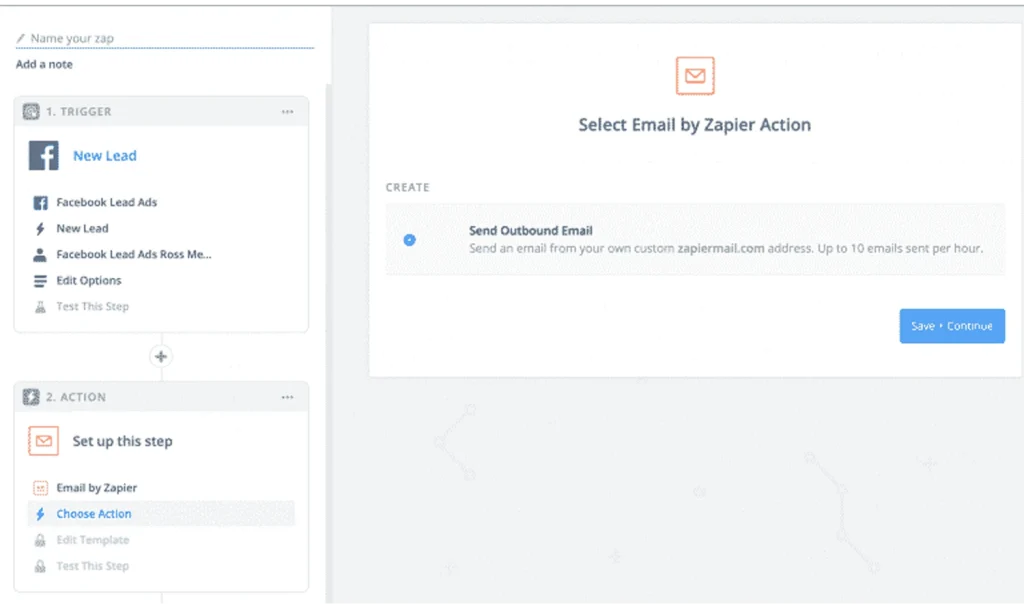
Step 6: Next we need to select an Action, on the left side menu select, action and then search for “Email by Zapier” and select this option. This will bring another box up which should be auto-selected, “Send outbound Email” and click save continue.
Step 7: Finally we go through and fill out the fields to pass the required information through the email, in the body field click the + in the right corner and select the information that is pulled in from your Facebook Lead Ad, i.e. Full Name, Email & Phone etc.
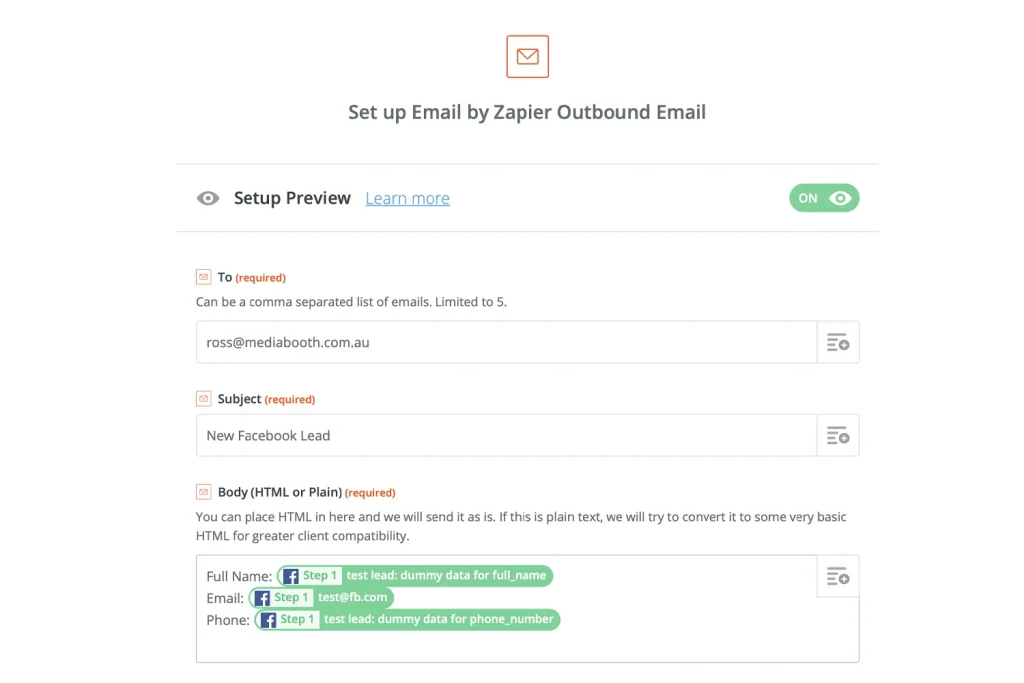
Finally, select continue and hit send a test to ensure you receive the test email from Zapier. Remember to add the email address to your contacts to ensure it doesn’t get added to your junk.
Happy automating.
Need help with any marketing or automation? Contact us today for a free quote.