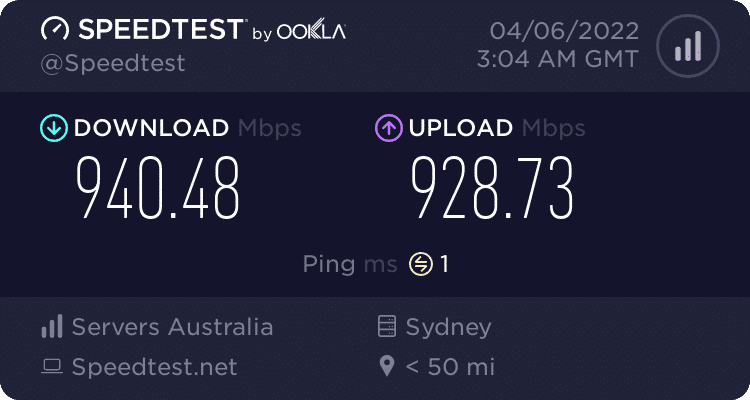
Below is a list of commands to run on your WHM, cPanel or Plesk server to conduct a speed test using Speedtest by Ookla through your server terminal. Open the terminal and follow the steps below.
Important: Running commands as the root user can affect your server configuration. Only continue if you are comfortable using the command line, and consider creating a server backup before making changes.
Install one dependency
The following command uses the YUM package manager to install Python. On newer operating systems, you may need to install Python 3 instead.
yum install -y pythonEnter the root directory
Use the following command to move to the current user’s home directory.
cd ~Retrieve the Python script using wget
The command below downloads the open-source speedtest-cli project from GitHub. This is a third-party script and is separate from the official Ookla Speedtest CLI.
wget https://raw.githubusercontent.com/sivel/speedtest-cli/master/speedtest.pyMake the speedtest.py script executable
The chmod command changes the file permissions so the downloaded script can be executed.
chmod +x speedtest.pyRun the script to see your download and upload speeds
Run the script to measure the server’s latency, download speed and upload speed.
./speedtest.py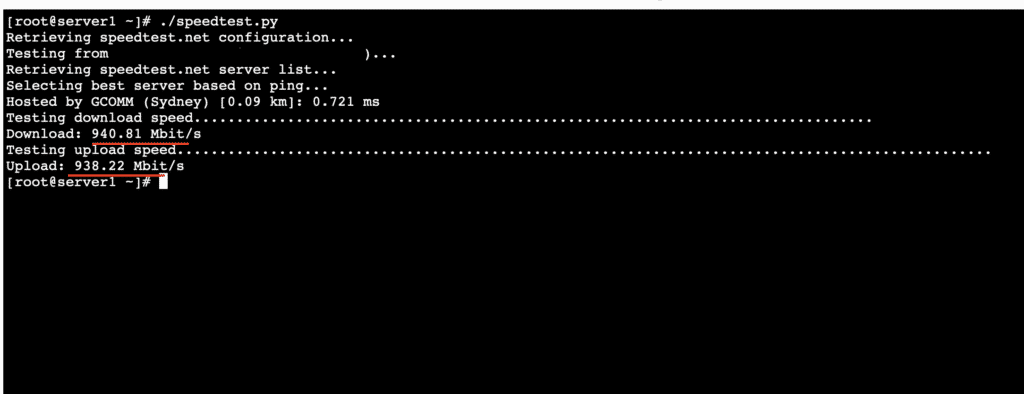
Want your results in an image?
Use the --share option to generate a shareable image of the speed test result.
./speedtest.py --shareThis option will display a link in the terminal. Copy the link into your browser to open the result in an image format that can be saved or shared.